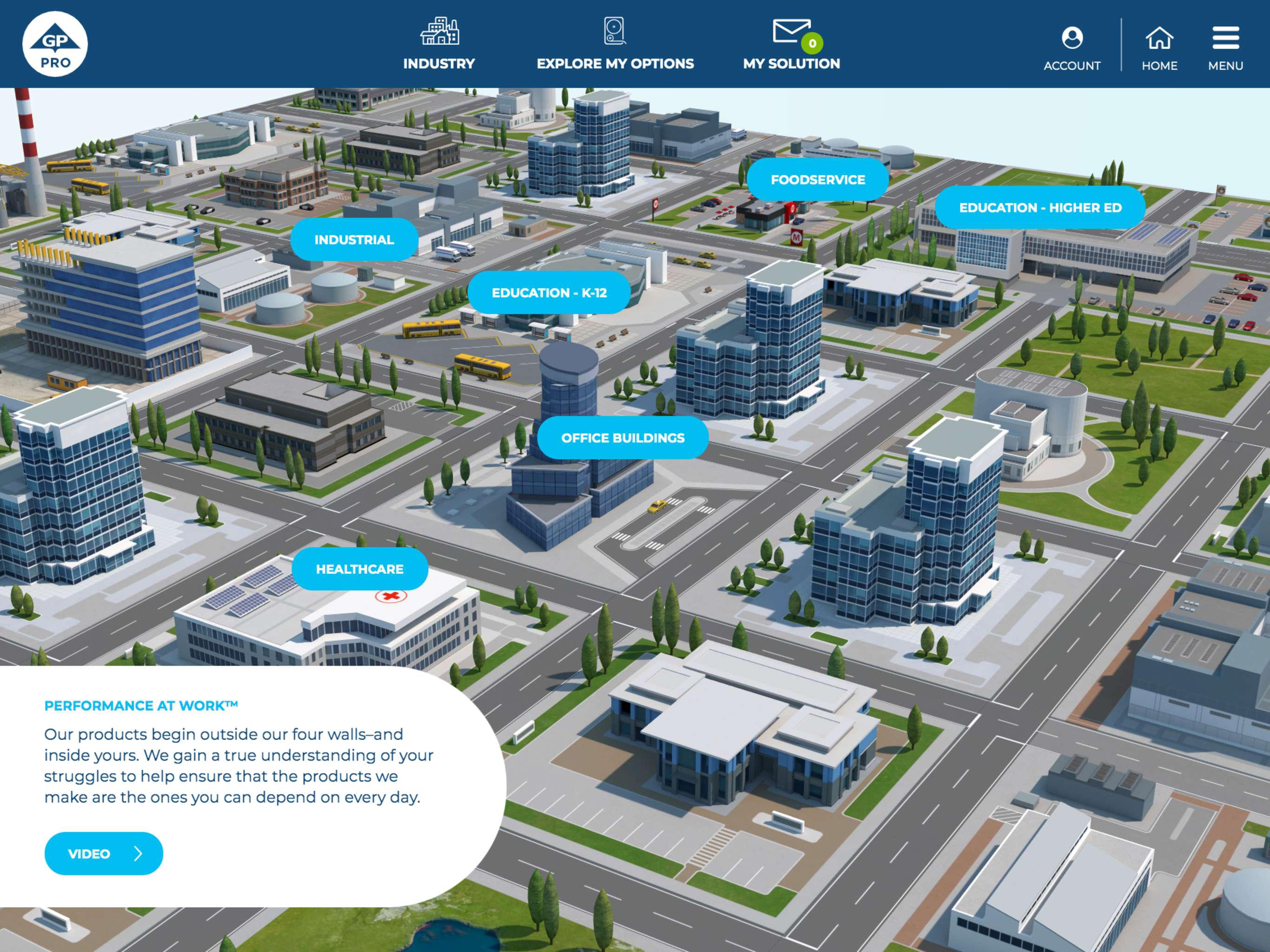
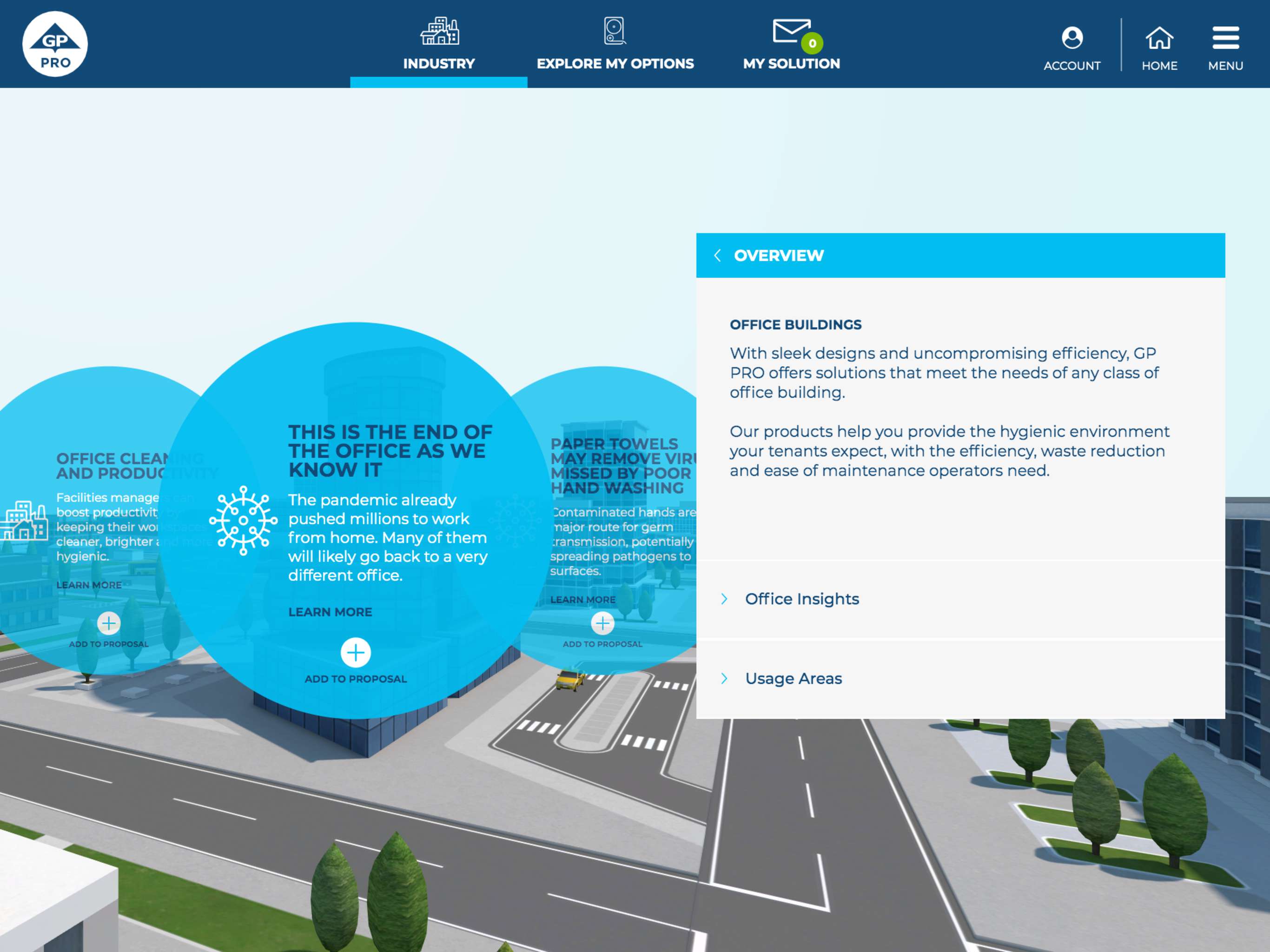
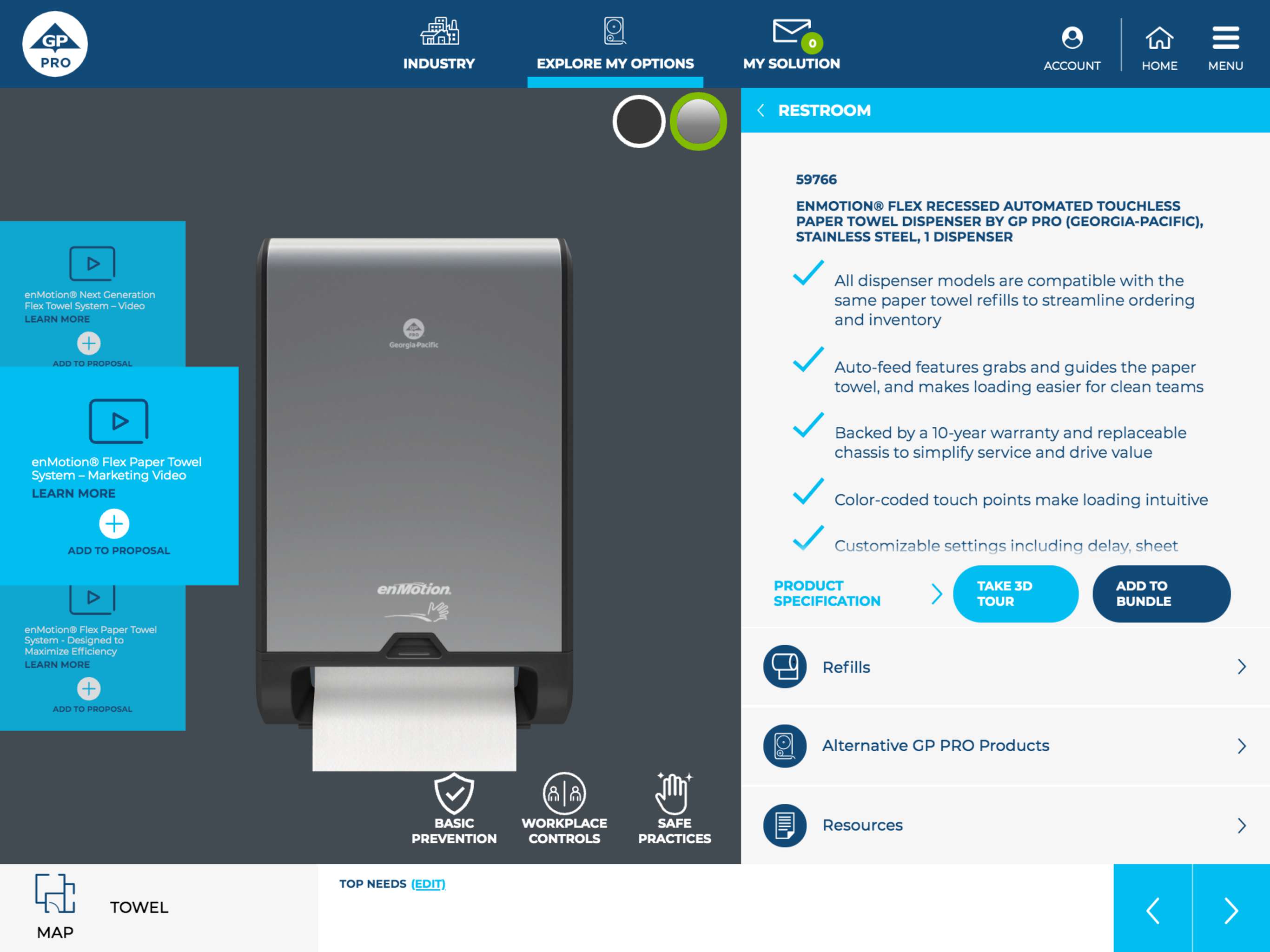
GPXperience is a comprehensive tool that combines all GP PRO products & resources into one powerful solution builder. It will increase productivity by providing the ability to quickly create professional proposals and an innovative approach to selling.
GP PRO, 3D, GPXperience, Solution Builder, GPPRO, Selling, Solution, Proposal, Industry Insights
Support calls and emails are received 24/7 and will be responded to within 24 hours (weekdays between 8am-6pm EST)
GPXperience - Solution Builder
GPXperience is a comprehensive tool that combines all GP PRO products & resources into one powerful solution builder. It will increase productivity by providing the ability to quickly create professional proposals and an innovative approach to selling.
Browser Support
Kaon Interactive web applications require a modern browser with 3D graphics (WebGL) enabled.
Supported platforms
On the desktop, use a current version of Google Chrome, Microsoft Edge, Firefox, or Safari on Windows or macOS. On mobile, current versions of iOS and iPadOS are supported in Safari or Chrome, and recent Android devices are supported in Chrome or Firefox.
If the web option is unavailable
If you are using one of the browsers above and the application still will not launch, graphics acceleration is most likely turned off in your browser settings. This is the most common cause.
Chrome - open chrome://settings/system, turn on "Use graphics acceleration when available," then click Relaunch.
Edge - open edge://settings/system, turn on "Use graphics acceleration when available," then restart the browser.
Firefox - Settings >General >Performance, clear "Use recommended performance settings," then select "Use hardware acceleration when available," and restart.
Safari - acceleration is on by default. If the application still will not load, try a Private window to rule out a browser extension.
If the setting is greyed out or reverts after you restart the browser, it has been disabled by your organization's IT policy. Chrome users can confirm this at chrome://policy. In that case, please use the desktop install option or contact your IT team.
Support for older graphics hardware varies between browsers, so trying a different browser can help even on the same computer.
Unsupported devices and environments
These applications are built for desktop and mobile browsers and are not supported on:
Smart TVs and built-in TV browsers
Digital signage players and media players
Set-top boxes and streaming devices
Game consoles
Kiosk systems with embedded browsers
Virtual desktops and remote sessions, including VDI, Citrix, and Remote Desktop, which typically have no access to a graphics card
For a large-screen display, run the application from a desktop connected to the screen rather than from the display's own browser.
Apple Silicon Support
The desktop version of this app is available in two versions, depending on what kind of Mac you are using. For best performance and reliability, it's important that you install the right one.
At the top left, open the Apple menu.
Select About This Mac.
In the “Overview” tab, look for “Processor” or “Chip”.
Check if it says “Intel” or “Apple”.
Kiosk Instructions
The Desktop version of this application can be used on a touchscreen “kiosk.” You will need a Windows or Mac computer, and single- or multi-touch touchscreen that is compatible with that computer and operating system. The screen should be 16:9 aspect ratio, ideally 1080p (on other screen sizes, the app will be automatically scaled and letterboxed as needed). Install the application on the computer and start it normally. If you are using Windows, tap the [ALT] key to show the menu bar. On either Mac or Windows, from the menu bar choose View > Kiosk Mode. You will be prompted to restart.
You need an Internet connection to install this application. Once installed it can be run offline.
To install this application on a computer without an Internet connection, you will first need to make an Offline Installer
If you need to install on an air-gapped computer, such as a kiosk with no Internet connection, you can create an offline installer on a different computer, and then install it from a USB Flash Drive. First, install this application on a PC or Mac that has an Internet connection. When everything has been downloaded from the cloud, you will see a message "Ready for Offline Use". If you are using Windows, tap the [ALT] key to show the menu bar. On either Mac or Windows, from the menu bar choose File > Make Offline Installer. You will be prompted to insert a USB Flash Drive, and then the installer will be written to that device. You will need an Internet connection to create the flash drive. You will be alerted when the flash drive is ready. For large applications, this can take a long time (flash drives are not particularly fast).
Once you have the USB Flash Drive prepared, insert it into the air-gapped computer. You will find installers on the flash drive for both Mac and PC. Perform a normal installation and run the application. When it starts up, it will detect the USB Flash Drive and complete its installation from there instead of from the cloud. After the app is fully installed, you can remove the USB Flash Drive.
Notes on Offline Use
As this application requires user authentication, you will need a keyboard, mouse, and Internet connection to run it the first time, even on an air-gapped computer. If you don't have an Internet connection available, we recommend using a mobile phone hotspot, just to get through the authentication. After being authenticated, you can take the computer offline and the authentication will be remembered.
Analytics are cached locally on the computer when run without an Internet connection. We recommend connecting to the Internet, restarting the application, and using it for a few minutes at the end of a trade show, to ensure all analytics data is recorded.
Kaon VR® on the Web
This application supports VR using WebXR technology. The standards for this technology are rapidly evolving, and Kaon will continue to update this application as things change. The recommended configuration is:
Firefox Reality Browser
HTC Vive Focus 3 headset
or Oculus Quest or Quest 2 headset
Create LiveShare
LiveShare is an in-App, interactive experience that enables independent and shared exploration of the application.
Please be sure to save your PIN as it will be required to join the LiveShare as host.
* Zoom is a registered trademark of Zoom Video Communications, Inc., Microsoft Teams is a registered trademark of Microsoft Corporation, Cisco WebEx is a registered trademark of Cisco Technology, Inc. Their use here is informational and should not be interpreted as affiliation or endorsement by those companies.
Support calls and emails are received 24/7 and will be responded to within 24 hours (weekdays between 8am-6pm EST)
What is the Kaon Interactive Application
The Kaon Interactive Application is deployed on a universal marketing platform that provides engaging demonstrations of complex products or solutions to prospects, customers, sales teams, channel partners, and marketing personnel. The self-driven non-linear user engagement, results in a personalized experience every time, creating a relevant transfer of knowledge to each individual in the buying cycle. The Kaon Interactive Application seamlessly weaves together compelling virtual 3D product demonstrations (that look and behave like the actual products), 3D virtual environments, panoramas, flow diagrams, videos, embedded marketing collateral, and presentations in a branded digital environment. Learn more at kaon.com

 Desktop Install
 Run Online/Web
 Add to email
 Embed
Embed


 INTERACTIVE
 DEVICE
 EXTENSIBLE CONTENT
 CONTENT & LANGUAGE
 SEAMLESS
 GLOBAL
 CONTINUOUS
 SALES MEETINGS
 TRADESHOWS & EVENTS
 WEBSITES & MICROSITES
 SOCIAL MEDIA CHANNELS
 BRIEFING CENTERS